
If you are an Audible fan, then having the ability to access your library offline on a Chromebook can be a massive boon. At the moment there are no official offline versions of Audible for Chromebooks. You can always play books directly from the website, but this requires you to be connected to the internet.
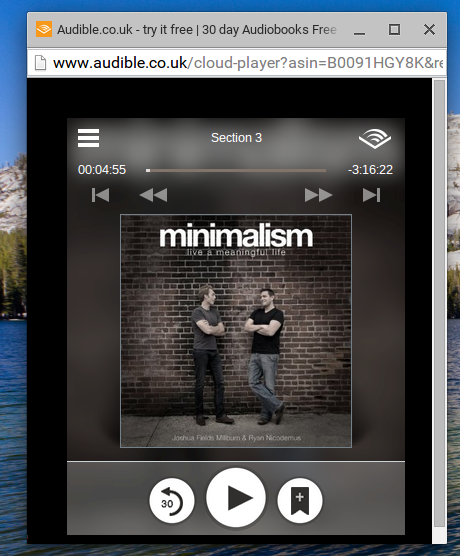
The online Audible player looks a little something like this:
Offline Access to Audible Library
To be able to access your library offline, you need to install the Android app on your Chromebook. This has been made much easier of late, with Arc Welder utility from Google. Arc Welder was designed to allow authors of Android apps to easily convert them for use with Chromebooks.
Fortunately for you, I’ve done some of the heavy lifting and created an Audible app for you to load and use. You might want to play with Arc Welder and APK files, if so have a look here: http://www.howtogeek.com/214734/how-to-use-googles-arc-welder-to-run-android-apps-in-chrome/
Process
The steps in the process are as follows:
- Download the zip file
- Unzip the file
- Load Unpacked Extension
- Launch
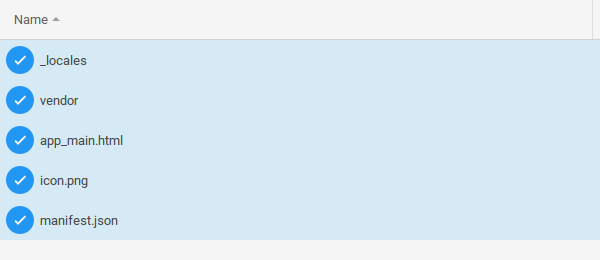
Once you’ve downloaded the zip file (which is about 19Mb in size), you need to extract it. To do this create a folder in your ‘Downloads’ folder or on an SD Card. I prefer to install apps on an SD Card, because contents in the ‘Downloads’ folder can get erased by the OS. Whilst the SD card is a little bit slower, if you become dependant upon this application it is more palatable to have it start a little slower, than be erased without warning.
Copy the contents from the zip file into the new folder you have just created. For ease, I suggest you call this location ‘Audible’.
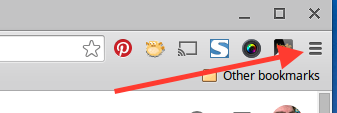
Now, you need to load the unpacked extension. Do this by clicking on the menu icon (three little horizontal lines) in the top right hand corner of the Chrome browser.
Then make sure that you tick the check-box labelled ‘Developer Mode’ – this provides you with the option to ‘Load unpacked extensions’.
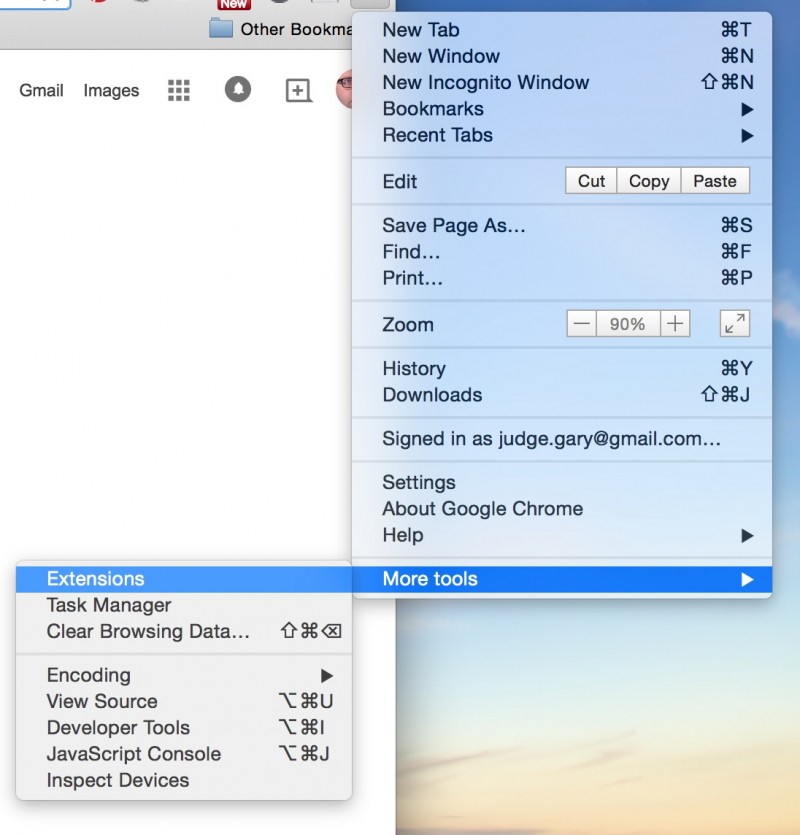
The goto ‘More Tools’ and choose ‘Extensions’. This will open a new tab with extension options. Tick the box labelled ‘Developer Mode’ then you can ‘Load Unpacked Extension…’.
Select the Audible folder you created earlier – this should load the extension.
When you have loaded the extension you will see an red highlighted error: There were warnings when trying to install this extension:
Unrecognized manifest key ‘arc_metadata’.
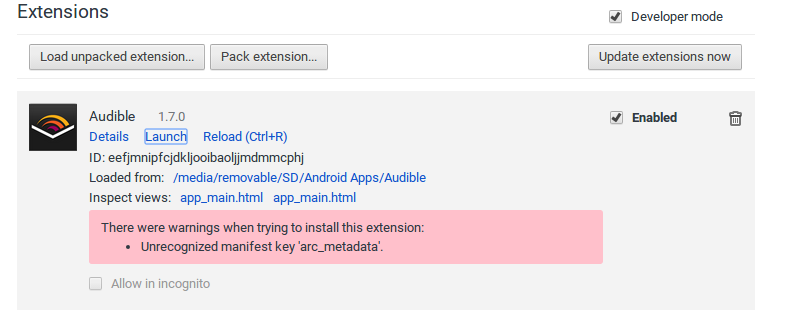
This is expected behaviour and something that shouldn’t stop you from continuing.
Press Launch and Audible should start to load.

You may need to be a little bit patient. It can take a minute or so to load – especially if you are running the file from an SD card.
Testing
Once Audible has finished loading, you should be able to log in with your account and access your Library. Most importantly though, you can also download files for offline playback. If you’ve installed the application on an SD card then there will be no danger of Chrome OS cleaning these up, so will be with you wherever you go.
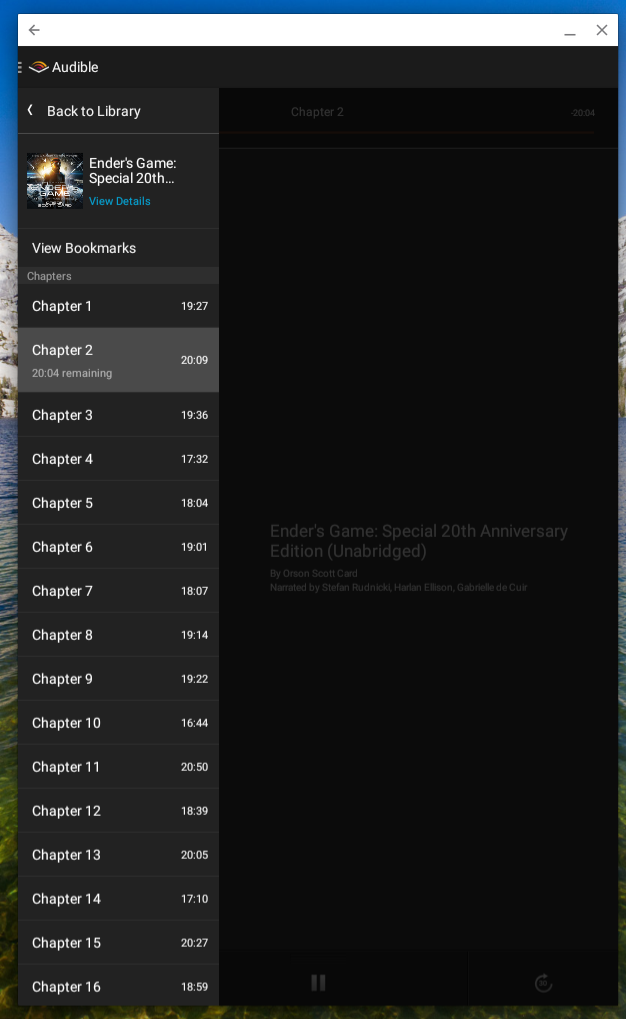
When you are running Audible, it looks a bit like this (this is the app running on a Toshiba Chromebook 2):
Next Steps
If you have access to files in the m4b audio book file format, you may wish to play these on your Chromebook too. I’m in the process of searching for an Android app which allows me to access files from my Google Drive and play files offline. I’m sure something will be available somewhere – if not I might need to dust off my java skills and write one myself.
If you do happen to come across an app which works in this way, please let leave a message as I’d really appreciate being able to get this going. Thanks.
3 Responses
doh! I got an error! “extension from: ~/Downloads/Audible
‘import’ extension is not installed.”
Any ideas? I was really looking forward to this! And thank you so much for your work making it, regardless of how this turns out!
Hey Ed,
I had the same problem. To resolve it I recreated the zip file using the steps below:
Install the Arc Welder App from the chrome store.
Download the audible apk from the audible support site.
Open the apk in arc welder.
In the menu select the portrait orientation and phone device from the drop downs.
Click the download zip option at the bottom left.
Extract the zip to an empty folder.
Mine showed up without having to load an unpacked extension when I went to the extensions tab and worked when I clicked launch.
I’m trying this, but it won’t even let me install the audible app, saying I don’t have any devices. Apparently, my chromebook isn’t compatible with android apps, so it won’t even let me install it so I can open it in the arc welder app. Any suggestions?