So you want to connect to an FTP server using a Chromebook? As you probably already know, chromebooks are excellent web development devices. With their lightweight footprint and full Chrome browser, they are well suited to this work. However, connecting to FTP server is not that easy a task – until now. With the advent of Android apps coming to most Chromebooks things are set to get much easier. This article runs through setting your Chromebook to connect to a FTP server so you can get on with developing with your Chromebook.
Android Apps for Chromebook
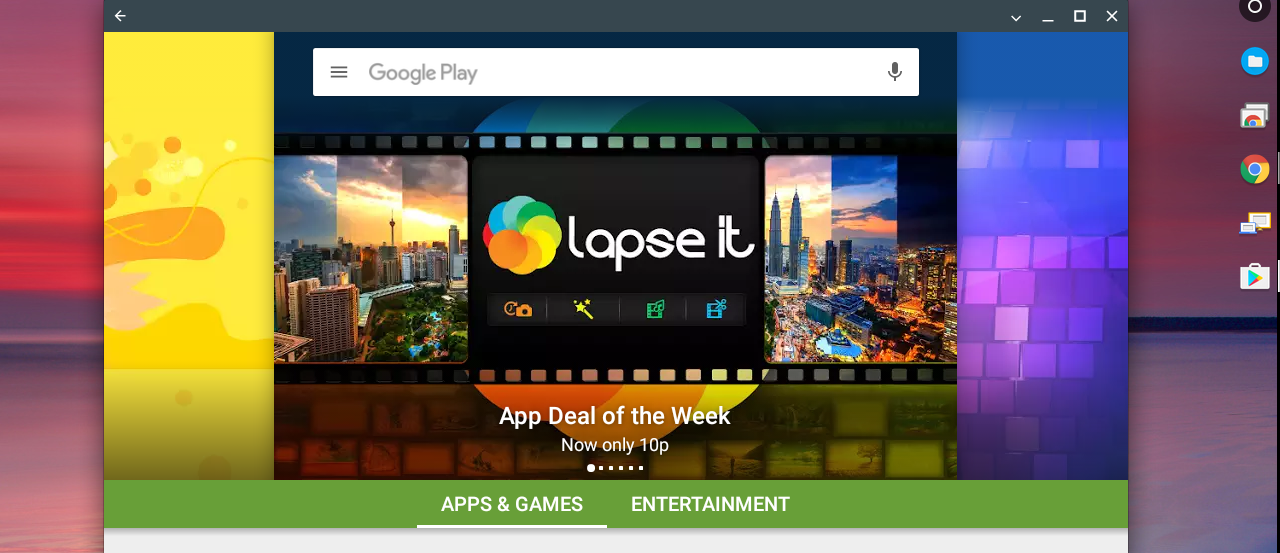
To get this to work, you will (currently) need a Chromebook running on the beta channel which is compatible with the Play Store. Please refer to this list to determine whether your Chromebook is compatible now or coming soon.
This article has been written on my trusty Asus Chromebook Flip on the beta channel.
FTP Server using a Chromebook
So, to get started you will need to open the Google Play store and search for FTP. This will bring up a myriad of apps to choose from. For this walk through I’m going to choose AndFTP as it is free (ad supported) and works really well on ChromeOS.

This is what your Chrome desktop should look like after you’ve installed AndFTP:

When you first run AndFTP you will be prompted to setup a connection. Don’t be so hasty as you’ll need to make a setting change first.
Configuring AndFTP
Being as the app you are using isn’t aware you are using a Chromebook and thinks you are on a phone or tablet you need to change the local storage directory called. To do this, click on the settings icon in the top right hand corner:
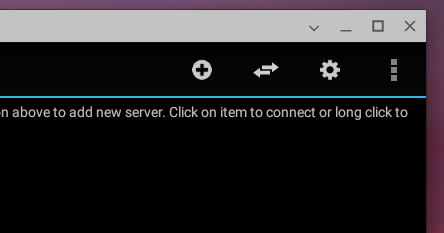
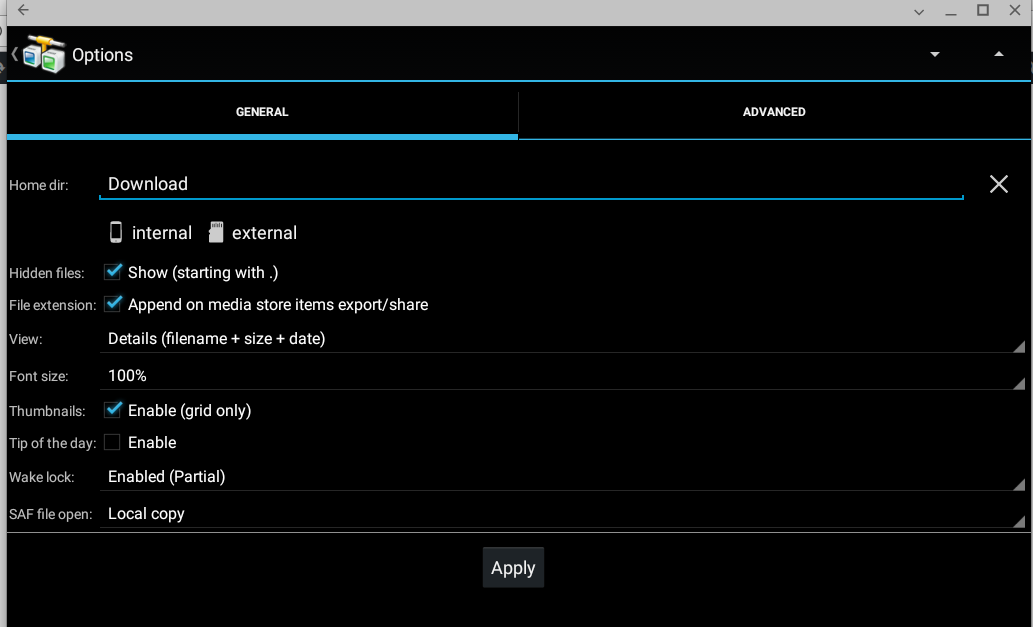
Then notice the Home Dir is set as /storage/emulated/0

Click on external
And then when prompted to uses the downloads folder press Select
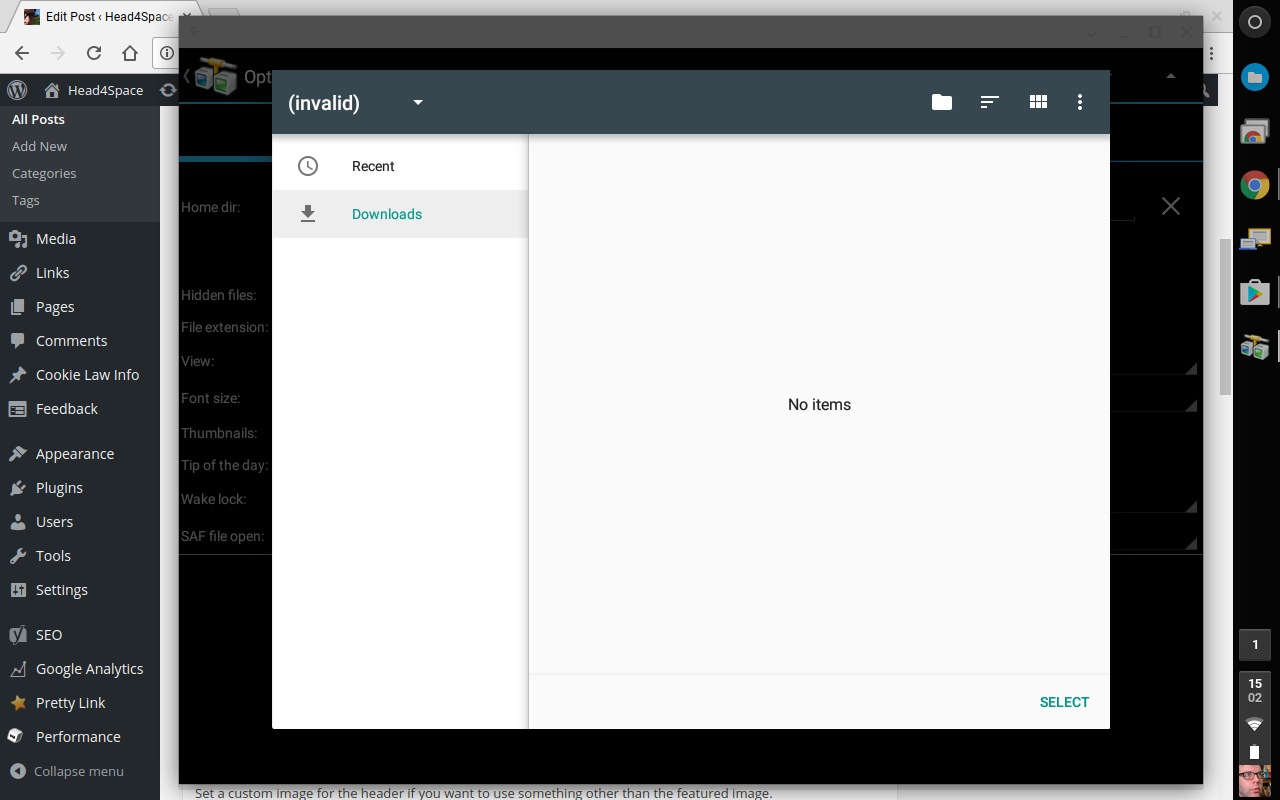
Now when you upload or download content from an FTP site, the files will all reside in the Downloads folder. This is accessible to the entire system, so a top place to start.
From now on, all new connections will use the Downloads folder and this will not need to be manually set for each connection.
Now you can move on to creating a connection and put in the details you need to connect to your chosen FTP server.
Test everything is working as it should, including saving files to your device.
A Note on Downloads
It is worth noting the Downloads folder will get cleaned up (deleted) by the system if storage becomes tight. So, it is worth moving or copying important files to Google Drive. This ensures that if your system does clear these out, you have a copy you can easily recover.
If You Get Stuck…
By now you should have the means to connect to your FTP Server using a Chromebook. If you get stuck though, please get in touch by leaving a comment below.
One Response
ok i got it connected to the download folder, and server info in. now where do I upload to?