This may sounds like a trivial matter but copying an adsense code on iPad from Google is harder than it sounds. If you use Safari you are unable to select all of the code that appears in the pop up box and if you try Chrome for iOS it copies some source code that is of no use to adsense publishers.
I’ve written this article to walk you through the process of getting your adsense codes on iPad from the Google adsense site using Safari and Google Docs. This is the most efficient way that I have found to get the codes and means that you have a backup stored in the cloud should you need them again in the future.
The Process
1. Open up Safari and browse to your adsense account – http://adsense.google.com – you must use Safari as Chrome will not allow you to do all of the next steps. If you are looking at the mobile view, scroll to the bottom and change this to classic.
2. Now create your ad – or select one that you’ve previously created. For the purposes of this exercise I’m using an ad called ‘Head4Space Test’.

3. Open up Google Docs and create a new document – I’ve called mine ‘Adsense Codes’.

4. Return to Safari and press on the the link to ‘Get Code’ if the new adsense code isn’t onscreen already.
5. The familiar pop up will appear, select the text that you can see and press on Copy.
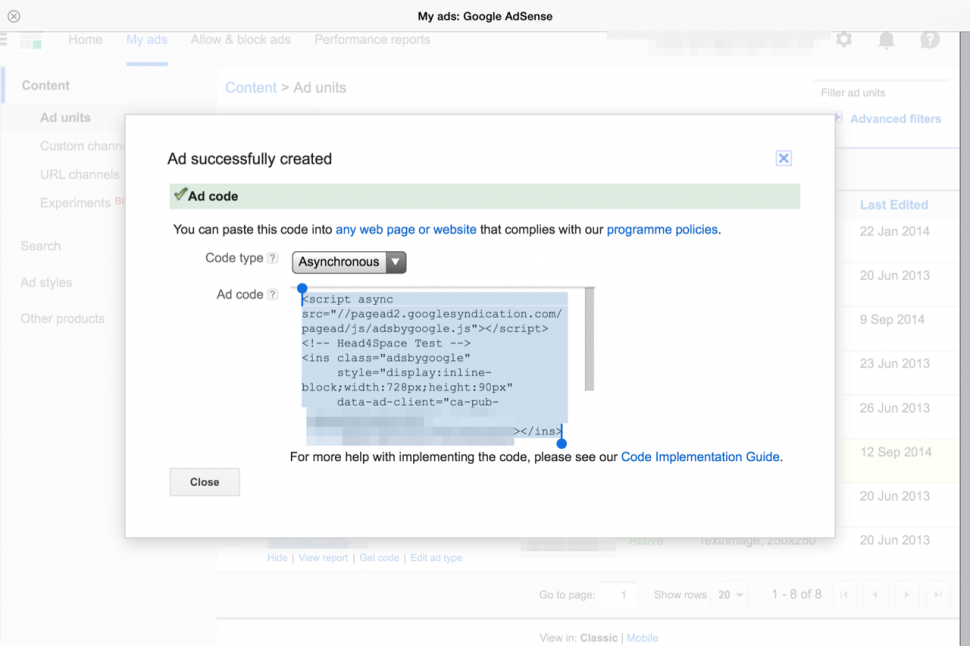
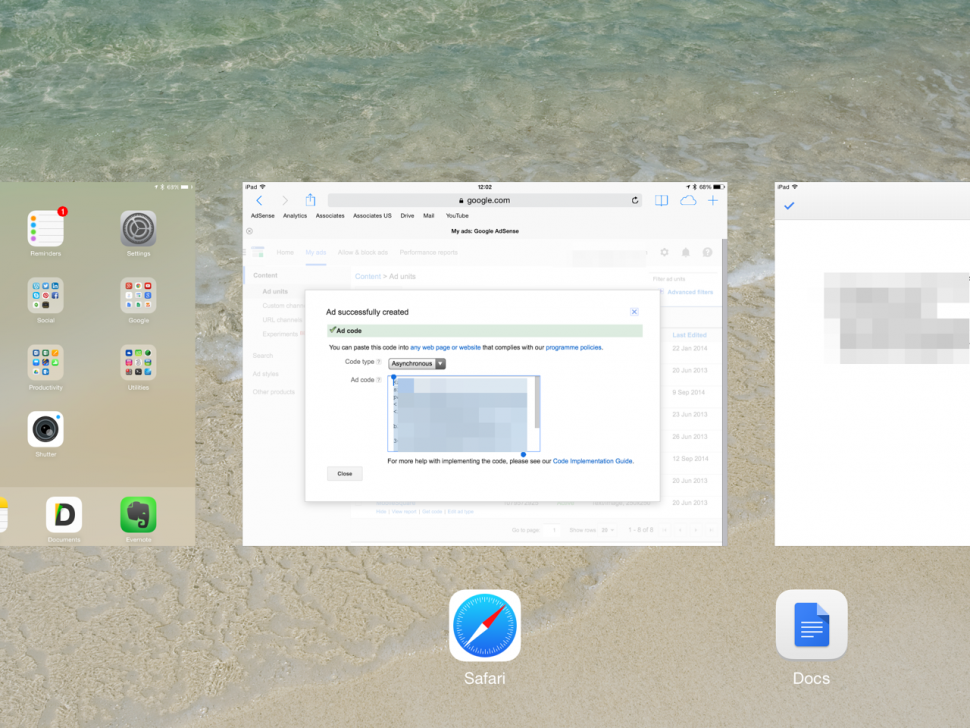
6. Switch over to Google Docs and copy the text from your ad.

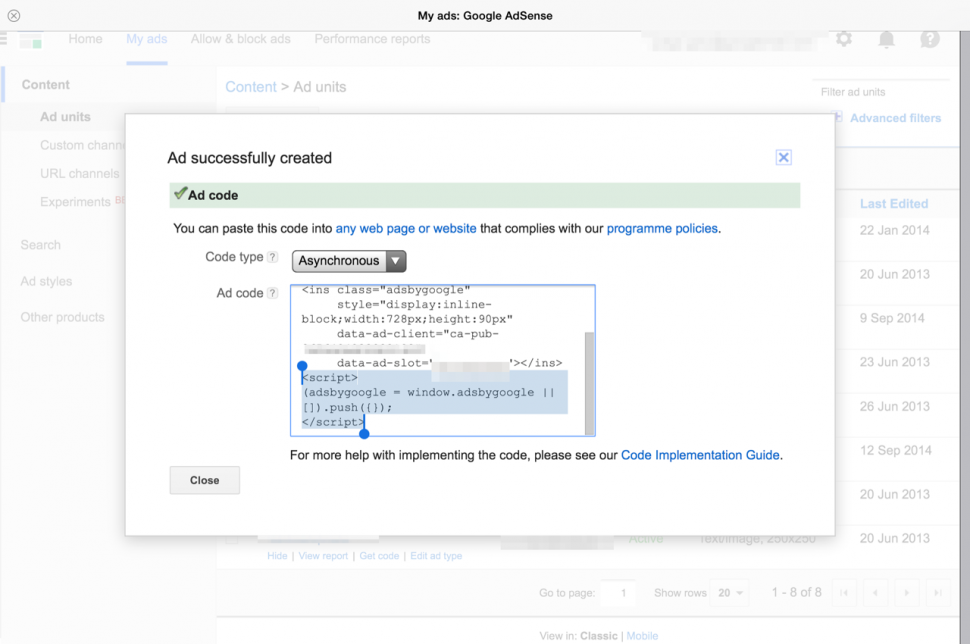
7. Now switch back to Safari, scroll down to the bottom of the pop up box.
8. Select and copy the code that you previously couldn’t get to.
9. And now paste this into Google Docs.

10. What you now should have is a complete adsense code that you can copy into your webpage so that ads are presented.
Considerations
As previously mentioned you must follow the process in Safari as Chrome allows you to copy something – but nothing that will be of use. Feel free to give tis a go though.
I suggest that you keep a copy of all of you adsense ad unit codes in a Google Docs document as you’ll find them much easier to work with if you use an iPad often.
Once you have one full code copied you can then use Google Docs to create a replica and just edit what is different. The adsense codes all follow the same structure, so once you have one you can use this as a basis for any other ads that you create.
Whilst this post was written specifically aimed at the iPad, the process will work just as well for iPhones. There may be a bit more pinching and zooming required but you can achieve the same outcome following the above process.
Having an external keyboard doesn’t help matters unfortunately. I was hoping to use the Shift and Up shortcut to select the text but alas it doesn’t work within the pop up.
Has this helped?
Has this helped you out? Do you use you iPad heavily for creating and editing web sites? If so, I’d love to hear about what you do and what you find works well.
No Responses