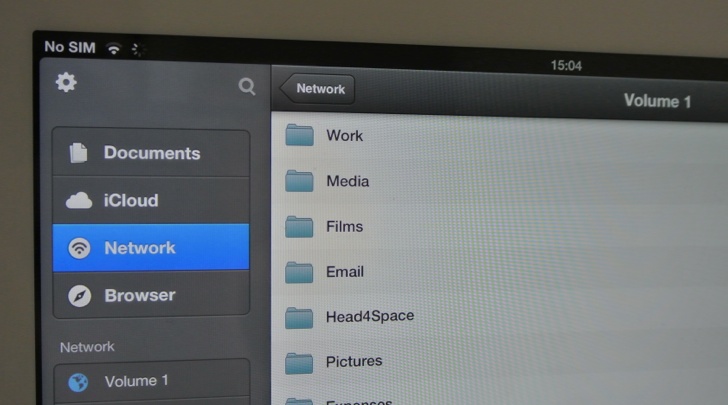
Getting files to and from an iPad is something you will probably need to know how to do. Being as iOS doesn’t natively allow you to save files to network shares you will need to be a little bit creative when ferrying files around.
Dropbox, SkyDrive, Google Drive
One of the go-to ways of getting files to and from your iPad is to use a third party cloud syncing tool. Dropbox, SkyDrive and Google Drive are probably the best examples as these will automatically sling any file to the cloud and then place copies on any computers you have hooked up to your account. You don’t have to have your own computer to make the most out of these services as you can always get access to the files from a web browser. In fact if you are using Google Drive / Google Apps then you’ll probably gravitate more towards browser access as it does such a good job of allowing you to edit content in the cloud.
These tools all provide basic document viewing capabilities which is really useful when attempting to determine if you’ve got hold of the right file. Not all file formats are supported but the standard office formats including PDF are.
Documents by Readdle
My personal favourite app is documents by Readdle as is allows you to not only connect to the services described above but with a little bit of fiddling also lets you copy files between them. So if you store you photos in SkyDrive (cos there is more free storage) but have your documents and spreadsheets in Drive then Documents by Readdle makes it relatively easy to merge these two data stores together.
Alongside working with cloud syncing tools Documents by Readdle also gives you the means to connect to a WebDav share. You can set these up on servers, NAS units or even using a Raspberry Pi meaning that you can cheaply store lots of data.
Email has to be one of the most universal way of getting files to and from your iPad. Once you are familiar with the email client you can email yourself files thus saving the files to your email storage. Outlook.com even provides you with as much free storage space as you need. Whilst being theoretically unlimited if you do add too much stuff too quickly then Microsoft will prevent you from sending and receiving email until the situation has been sorted out.
Evernote
You can use Evernote to synchronise and backup files as it uses it stores the files as an attachment. This is very similar to the way email works but is limited by the amount of data you can sync in a given month. If you are a free user of the service then this is limited to 60Mb per month whilst premium subscribers can sync up to 1Gb per month.
Evernote works particularly well with written material, so Word documents and PDF files work particularly well – as do photos but application specific file formats like Garage Band files aren’t really a natural fit for this service.
iCloud
iCloud enables you to sync files to iCloud enabled software. This predominantly means Pages, Numbers and Keynote and whilst there are hacks to use iCloud as a storage medium it is best left to be used in the way it was intended.
There are some apps which are starting to take advantage of iCloud as a means to save files. iDraw is one of those that seem to have implemented these features. I’m sure more developers will adopt this mechanism as it can help them shift OSX versions of their iOS software.
Connecting to a computer
Plug your iPad into a computer and it can be configured to backup apps, settings and documents. You can also delve into the file stores of a given app and access files that it may have stored for connected retrieval. This can be a little bit cumbersome but is useful for use with larger files.
Blend
In my opinion a blend of the above will provide you with the best way to get your files to and from an iPad. If you want to get a large movie file to a device then perhaps Dropbox isn’t the best way to achieve this. Instead connecting a cable or using WebDav whilst connected to a fast network would probably be more suitable.
Any more
If there are other tips and tricks that you’ve employed to get files to and from an iPad then please let me know by commenting below as this is a challenge most iPad users face and knowing as many options as possible can mean the difference between getting the most out of the device and assuming that it is just for content consumption.
No Responses