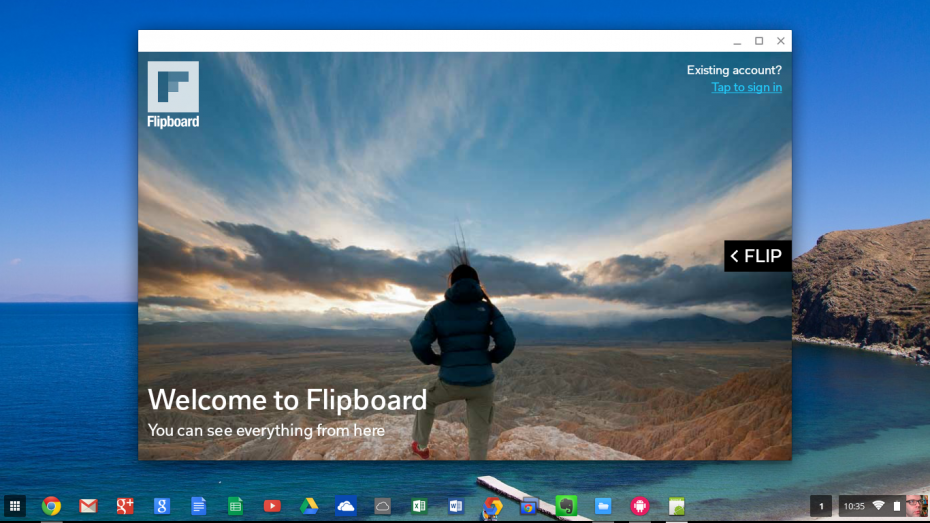
Following on from the success of ‘Install Flipboard on Your Mac or PC‘ I thought that I would look into running Flipboard on a Chromebook – my Acer C720 [UK Link] to be precise. At first I was disappointed to find that there was no dedicated Chrome OS app for Flipboard – but much like the lack of app for other desktops I was undeterred.
Initially I went down the route of installing Linux on my Chromebook and then trying to install a Android emulator but found that this was a hideously complex process that only the most geek-y could be bothered to follow.
Today, however I stumbled upon the Twerk plugin for Chrome which allows you to compile Android apps as extensions that can run on a Chromebook. Without hesitation, I got stuck in and worked out how to get Flipboard running on my humble C720.
Quick Note
Just before I move onto the process, I thought I would mention that some of the screen grabs were taken using Chrome on a Mac. This is because the built in Chromebook screen grab process doesn’t allow you to capture a shot when certain drop menus are present. So, if it doesn’t look exactly the same as it would on the Chromebook then you know why.
Process
Before I run through the process in a step by step fashion here is an overview of what I’m going to run though.
- Install Evernote
- Install Twerk
- Get the Flipboard APK file
- Drag the APK file into Twerk
- Pick a few settings
- Save as an unpacked Extension
- Load unpacked Extension
- Launch
1. Install Evernote
This is not as mad as it sounds. You see, when you install Evernote a component that Twerk is dependant upon (App Runtime for Chrome (Beta)) is installed. You can check this by looking at the Extensions installed – you do not need to look now though as we get onto this in step 6. As long as you have Evernote installed then you should be fine.
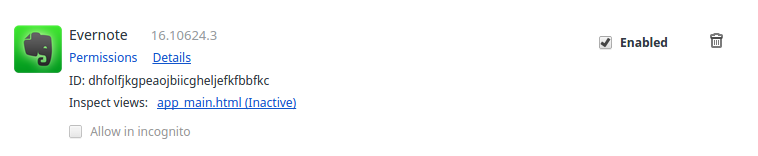
2. Install Twerk
Within the Chrome Web Store search for Twerk. This should appear as the top hit and look like the following:
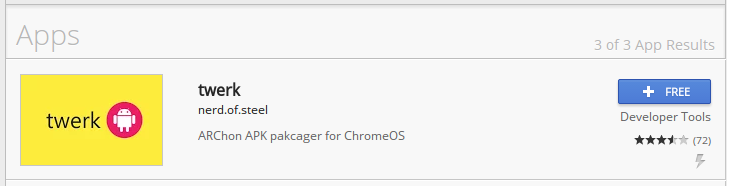
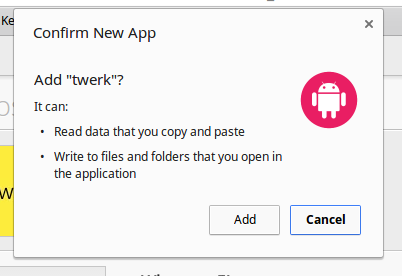
Install it by pressing the ‘+ Free’ button and then when prompting to do so, clicking Add – the installation will only take a minute or so as the extension is pretty compact at 3.56Mb.
3. Get the Flipboard APK file
A quick Google around and I found the following link to the Flipboard APK file:
http://www.apkmirror.com/apk/flipboard-inc/flipboard/flipboard-3-1-1-apk/
The file is 6.7Mb in size, so should take less than 2 minutes to download on a broadband connection.
For those who do not know what an APK file is, have a look here: http://www.androidpit.com/android-for-beginners-what-is-an-apk-file
4. Drag the APK file into Twerk
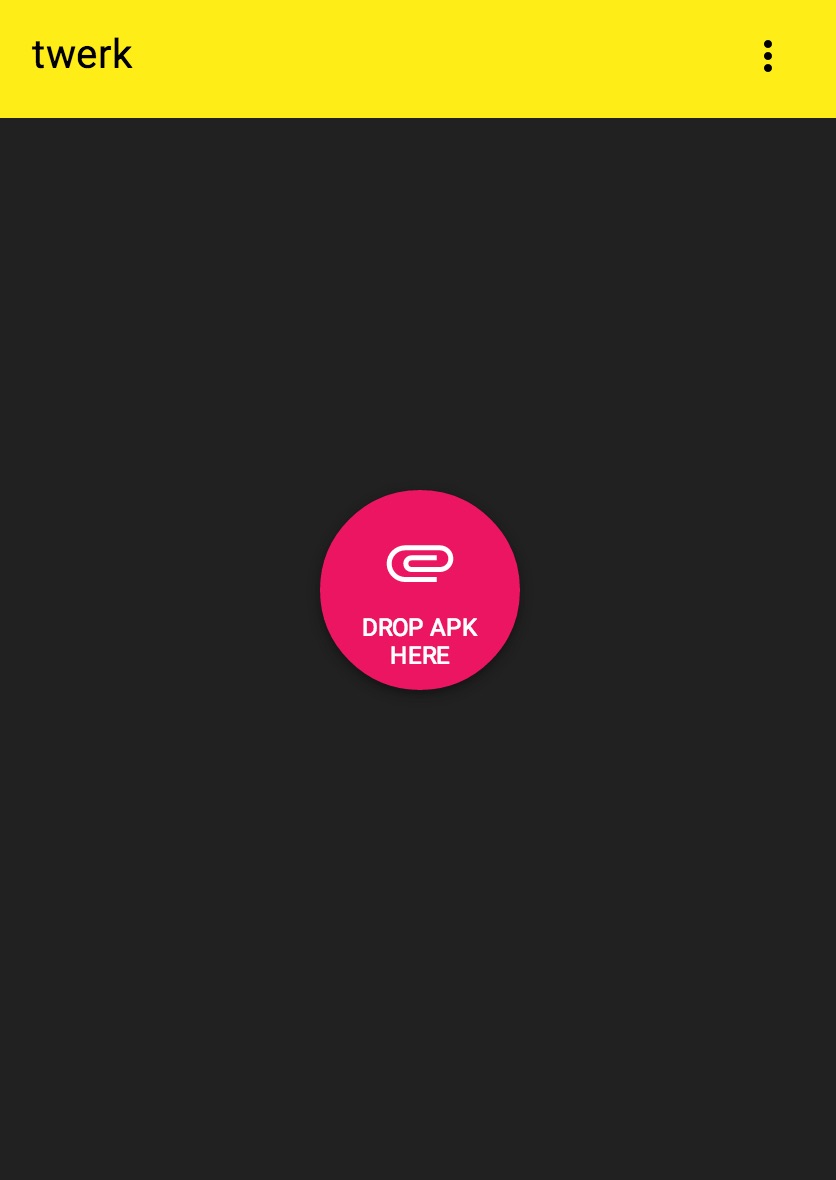
So now I open Twerk, and do as it says – that is drag and drop the downloaded APK onto the app:
5. Pick a few Settings
Once the APK file has been dropped over it I set the following settings:
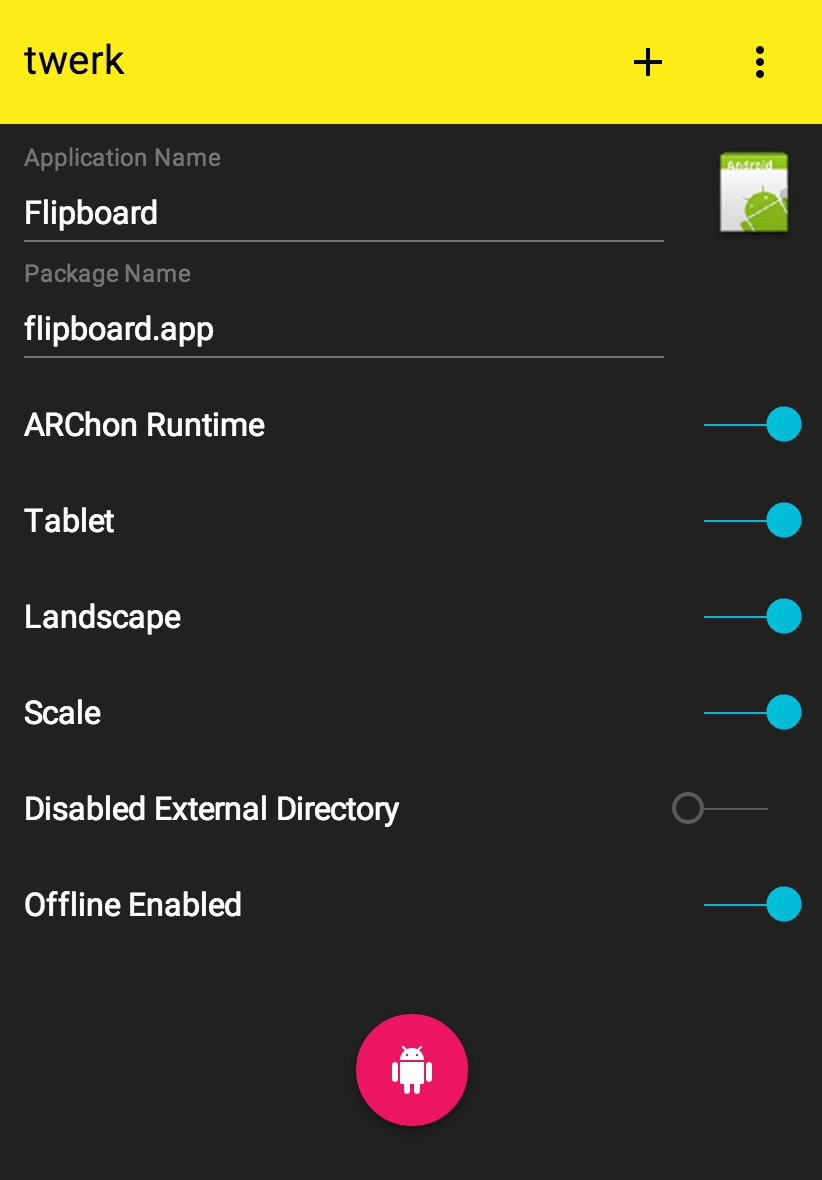
Make sure that you remove the dashes and numbers under Package Name to avoid getting an error message.
The rest of the settings make the app act like its on a tablet in landscape mode. You can play about with these to get the right look and feel for you.
6. Save as an unpacked Extension
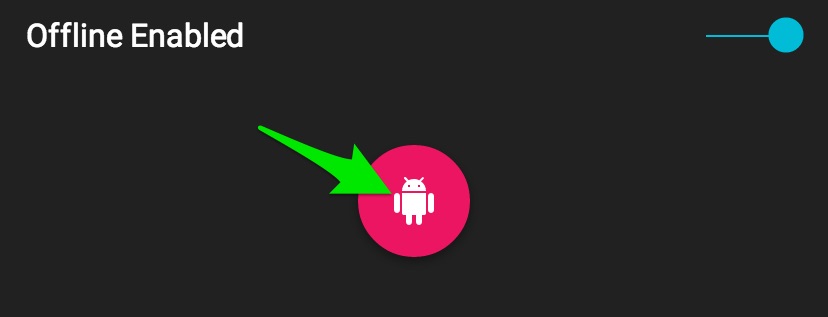
To save as an unpacked extension you just press the pink button at the bottom:
7. Load unpacked extension
From within Chrome click on the three horizontal lines
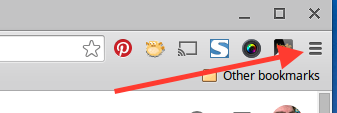
and go to the bottom of the list to get to ‘More Tools’ then select ‘Extensions’.
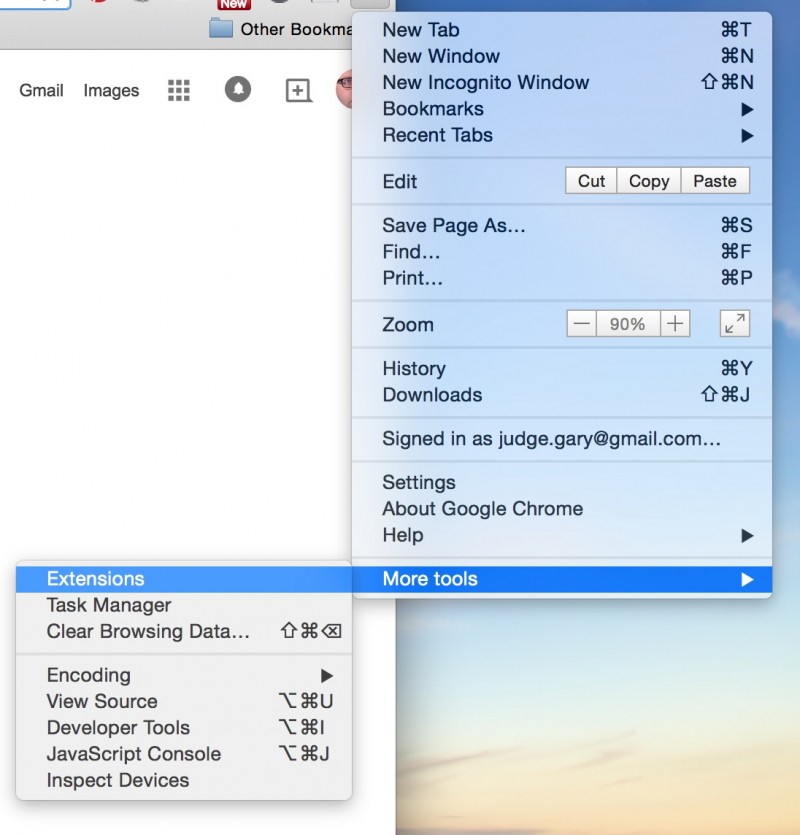
Tick the check box labelled ‘Developer Mode’ – this provides you with the option to ‘Load unpacked extensions’.

Click on ‘load unpacked extensions’ and then select the folder which contains the unpacked extension you just created.
When you load the unpacked extension you shall notice that there is a red error message which reads
“There were some warnings when trying to install this extension: Unrecognized manifest key ‘arc_metadata’.
You should be able to safely ignore this as it does not present the app from loading.
Before you move on to launching the extension you should enable ‘Allow in incognito’ for App Runtime for Chrome (Beta). This ensures that every app has the best chance of running.

8. Launch
Once you loaded the unpacked extension all you have left to do is Launch it. When you click Launch on the unpacked extension, it will take around 30 seconds for the app to load. During this time you will see the following displayed:
 .
.
Once loaded you will see that Flipboard is loaded within a window:
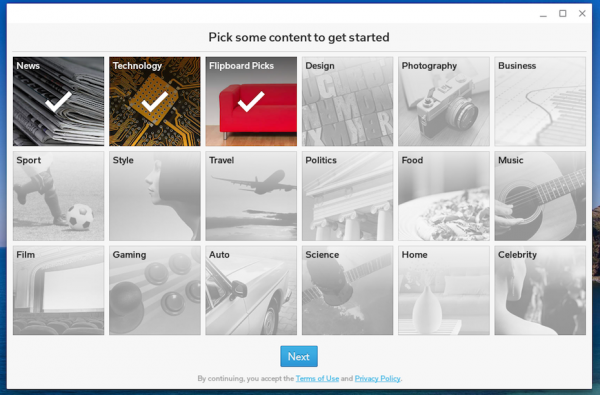
Notice that after you’ve launched it that a shortcut has been added to you app launcher.
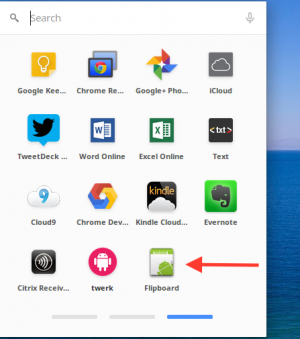
This allows you to access the App again without having to launch it from within the extensions section of the Chrome browser.
Top Tips
Now that you have managed to install Flipboard on a Chromebook, you may want to now what next – here are a few top tips.
To start with, you do not need to keep the APK file on your Chromebook after you have created an packed extension and loaded it. You do however need to keep the unpacked extension. With this in mind I suggest that after you’ve got familiar with the process that you store unpacked extensions in a folder called something like ‘Extensions’ or ‘Apps’ to avoid clearing them out.
Also you might want to try other APK files to see if they will run as unpacked Extensions. So far, I have managed to get a version of Skype to function but not the Google Play store. There will be a bit of trial and error involved but worth giving it a go if you are desperate for functionality which isn’t available within Chrome OS already.
Other Chromebooks
I’ve only managed to try this on my Acer C720 Chromebook [UK Link] and would appreciate it if others could try the steps laid out and advise whether this works on others. It would be especially useful if someone with a non-Intel Chromebook – such as the HP Chromebook 11 [UK Link] could try to install Flipboard on a Chromebook as it will no doubt help others.
9 Responses
Fails to load on Pixel. Gives me some error on Metadata.
Thanks for the heads up Alex. Is the error message “There were some warnings when trying to install this extension: Unrecognized manifest key ‘arc_metadata’.”? If so, I see this and it still loads when I press Launch.
Yes. I do see that. When I try to load it. I just get a pixelated Android logo in a medium sized window.
Does nothing happen after that? For me it turns into Flipboard after about a minutes wait.
can these steps be applied on other apk files?
Some APK files will work, whilst others will not – you will need to give them a go to see what works.
You try to use the playstore include in chromium browser in your chromebook? I repeat: Not the chrome web store, the play store.
Well I got to the final step and launched the fb app version 3.3.15 and the app refused to display the Flipboard screen, and hung up with the android screen displayed. I got the flipboard icon on the chrome app screen alright. I reloaded the app and tried several times again without any lucks. Is there any clue as what was wrong with the flipboard app for my Samsung Chromebook? Any help would be appreciated.
I was up to the portion of dragging the fb apk file into the twerk app. The twerk app won’t stay open to drag the file in. It kept on shutting out once I click to drag the apk file. Am I doing something wrong here