

New to Chrome OS and Chromebooks? If so, welcome to the party. Now do yourself a favour and learn these really useful Chromebook keyboard shortcuts. With just a little practice, you’ll begin to use these shortcuts without realising it.
1. How do I take a full screenshot?
A picture paints a thousand words. So it can sometimes be easier to send someone a picture of what you’re looking at, rather than trying to describe it. Or perhaps you just want to quickly catch something on your screen before it’s gone. For this, we have the trusty screen shot.
To catch a screenshot, just press:
Ctrl + Window Switcher Function Key

You’ll know you’ve successfully taken the screenshot when you see this at the bottom right of the screen:

2. Take a screenshot of just a specific area of the screen?
Sometimes, you don’t want to capture everything on the screen. You just want one specific area. No problem. Just make sure what you want to capture is both on screen and in focus. Now press:
Ctrl + Shift + Window Switcher Function Key

You’ll now see the cursor change to a crosshair. Just move the crosshair to the area where you want to begin taking the screenshot. Then click and drag the crosshair over the area you want to screenshot. Then release. Job done! Again, you’ll know you’ve been successful when the ‘screenshot taken’ dialogue pops up in the bottom left. This has got to be one of the most useful Chromebook keyboard shortcuts for editing purposes.
Quick tip 1: You’ll find the screenshots you take in your default download location. By default, this is the ‘Downloads’ folder in the ‘Files’ app.
Quick tip 2: If after taking the screenshot, you want to immediately paste it into a document or rich text/HTML field, try this. On the Screenshot taken dialogue box, click on ‘copy to clipboard’. You’re now ready to paste away.
3. Where has the ‘Delete’ key gone
One of the first things you’ll notice on your Chromebook; there’s no dedicated delete key. Don’t worry. There’s no need to backspace everything or use the trackpad to click on the delete icon. Instead, to delete, press:
Alt + Backspace

4. Where is ‘Caps Lock’?
Perhaps the second thing you’ll notice is that the Caps Lock key has also disappeared. It seems to have been replaced by a key with a magnifying glass on it (this is known as the search key). You’ll be glad to know there’s no need to play finger ‘Twister’ to type in block capitals.
To switch on/off Caps Lock, press:
Alt + Search

5. Where have the ‘Home’ and the ‘End’ keys gone?
If you regularly use the ‘home’ or ‘end’ keys on a standard keyboard, you might think they’ve gone for good on a Chromebook. Well, by now, I’m sure you’re seeing a pattern forming. Certain physical keys have been replaced by Chromebook keyboard shortcuts instead.
To simulate pressing the Home key, press:
Search + Left Arrow Key

To simulate pressing the End key, press:
Search + Right Arrow Key
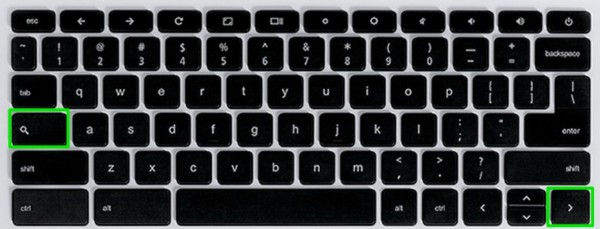
Quick tip: if you’re editing text and want to highlight everything to the beginning of the line (Home) or the end of the line (End) hold down the shift key with the above key presses.
6. How do I log out?
The quickest way to log out of your Chromebook is a left-handed, three fingered press. Try:
Ctrl + Shift + Q

You will then see a confirmation dialogue box pop up saying:
Press Ctrl+Shift+Q twice to sign out.
Repeat the key press sequence again to log out.
Once you’re comfortable with this, you’ll probably just want to press twice in quick succession for an express logout.
7. How do I lock my Chromebook?
Sometimes, you just want to step away from your Chromebook for a while. However, you don’t want anyone else to see what you’re doing. Also, think of all that defenceless, juicy information in your email account or auto-complete forms. So rather than leaving your Chromebook insecure in your absense, why not lock it? It’s as simple as:
Holding the power button for about two seconds
or
Ctrl + Shift + L

8. Launch my ‘pinned to shelf’ apps?
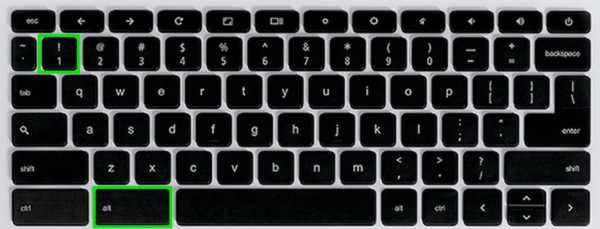
Huh? What are ‘pinned to shelf’ apps? On the home screen, these are the icons on the bottom bar, on the left. The bar at the bottom is known as the ‘shelf’. So to quickly launch the pinned app of your choice, just press:
Alt and 1 to open the first pinned app
Alt and 2 to open the second pinned app
Alt and 3 to open the third pinned app
…you get the idea.
9. Help Section
You’re in luck. All Chromebooks come with a built in help section. And, do you know what? It’s actually pretty useful. To access it, click on:
Ctrl and / (Forward Slash)

You can search the help section if you’re looking for something specific. Or you can just casually browse the topic of your choice. If you’ve run out of Youtube videos to watch or Facebook is down, why not spend a bit of time learning about your Chromebook.
3 Responses
++ – Home (top of page)
++ – End (bottom of page)
+ – Page Up
+ – Page Down
I use these all the time. More here: https://support.google.com/chromebook/answer/183101?hl=en
This has been the most useful email I have received in a long time! Thanks for sharing!!!
Extremely helpful. Extension to the Home/End suggestion for Google Docs: Ctrl-Search-left/right arrow for beginning, end of a document.