If you are the proud owner of an iPad (or any tablet for that matter) you will no doubt know how enjoyable being able to watch films on it is. Taking a small number of films with you can be both liberating and entertaining in equal parts.
If (like me) you have built up a collection of videos that you would like to be able to access but don’t have sufficient storage on your device then utilising the Google Drive as a cloud storage medium might be for you. This article talks you through the steps you need to take and things to consider when using Drive for this purpose.
Getting files into the best format
If you wish to watch films on your iPad then they need to be converted into a format that is natively supported by iOS. If your films aren’t already mp4 files then I strongly recommend you download and install Handbrake. The software is free and will convert your videos into iOS friendly formats.
Uploading your files
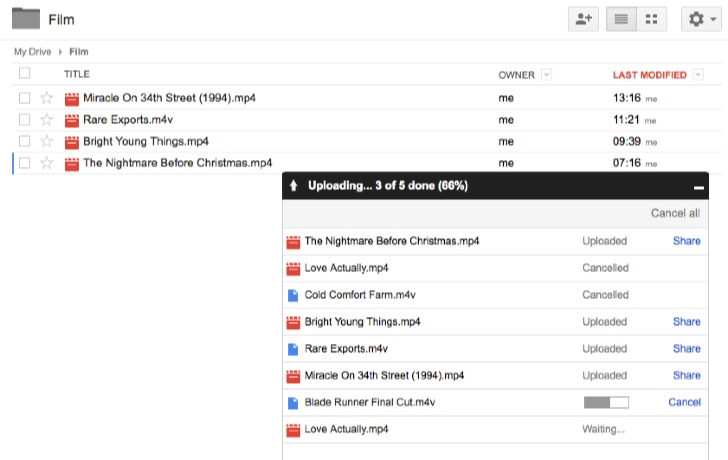
This is actually quite easy. You can either use the web interface or sync files using the application for Windows or Mac. I’ve decided to upload through the web interface as it gives me a little more control over what gets uploaded first.
Whilst uploading your files you probably need to be aware that it will take a lot of time. I’m on an unlimited Sky broadband connection and a 1gb film takes around 2 hours to upload. You therefore need to be prepared to wait a while whilst all of your films are going onto Googles servers.
Storage
You get 15gb of free storage when you sign up for Google Drive. To increase this to 100gb costs around £4 ($6 after taxes) per month. You can get more storage at additional expense but 15gb should be good enough for your tests and then 100gb should be enough to take it to the next level.
Playing Films
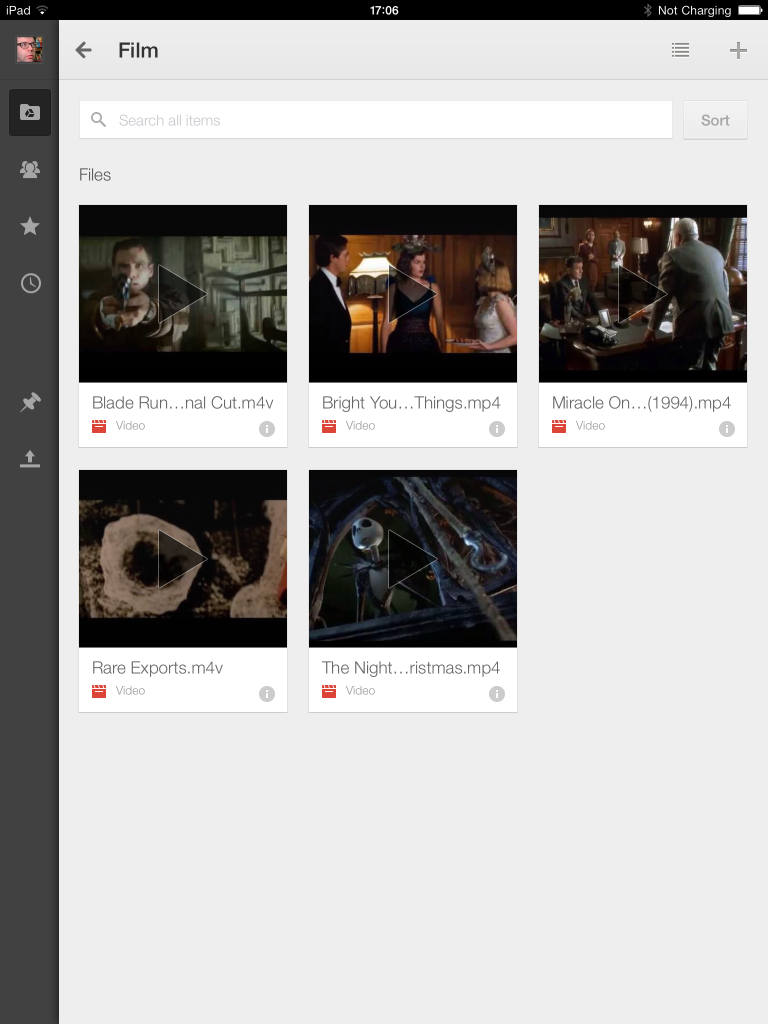
Playing films that are stored in Drive at full quality is a little harder than you might expect. If you access the files through the Drive app on the iPad you will soon notice that the video quality has been reduced. I consider this to be a preview mode and should be enough to make you sure you have the right film. It’s a shame that the full quality file isn’t available through the app as the interface is very nice and would make life easier.
Instead of watching them through the app you need to open http://drive.google.com in your browser and select the file from the mobile interface. When you select the file, if it is large you will see a notice warning you that it is too large to check for viruses. As these are your films you are safe to proceed. What then happens is the video file is progressively downloaded. So after about a minute or so of waiting enough has downloaded to enable you to start playback.
From within the Drive app you might be interested in trying the Open In option. This requires the whole file to be downloaded to your device before proceeding – so I wouldn’t bother.
Also if you copy the link into a browser it is a little bit tricky getting it to play full screen. So far I’ve only managed to do this by opening the link in Chrome and then switching to the Desktop Mode of the website. All in all I’d say that this is too much faff and that using the mobile Drive site is your best bet.
Here are a couple of images which show you the playback quality using Preview from within Drive app and direct from the Drive mobile site.


Bandwidth
If you are not on an unlimited plan for your internet connection then I’d strongly suggest that you look at upgrades. You could quite easily eat up all of your quota if you follow the steps above and are on a small limit.
Anyone Else?
I’d be interested to hear if you are doing this or something similar – I’ve tried the self hosting, Amazon S3 storage, box.Net and Dropbox but am convinced that Drive is the easiest and best value for money solution available at the moment. But if you are doing something else or have something else to add then please drop me a line as I’m keen to know what works for others.
2 Responses
Thanx for explaining……….i was worried with quality of videos in drive app
I’m trying to open mp4 using Drive on my iPad and it just tells me Drive can’t open mp4s. It makes me open it in another app, which I can’t do without sending it to iCloud.