
If you wish to connect your spanking lovely iPad Air to a HDMI display or projector then you need to get hold of a Lightning to HDMI [US Link] adapter. You will need to buy an original version from Apple as cheap alternatives (despite what they may claim) won’t work. The reason for this is that Apple has placed a chip in every adapter which protects others from copying these peripherals.
When you have your adapter all you need to do is plug it into you iPad Air (into the lightning port) and then run a HDMI cable from it to your display or projector.
Aspect Ratio
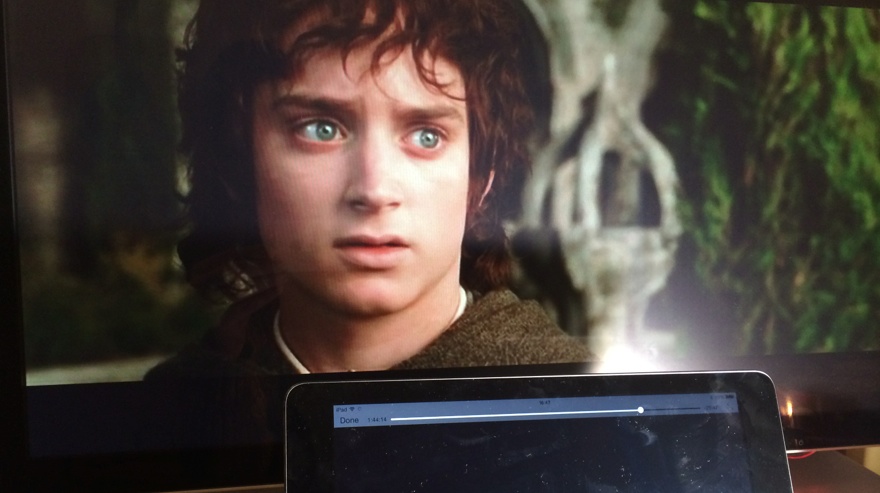
If wish wish to show the contents of your iPad screen on the display then you will get better results with a screen that has a 4:3 aspect ratio. Most TV’s are 16:9 so you will see ‘black ears’ when mirroring what is on your screen. The good news is that when playing widescreen films the content fills the screen rather than retaining the ‘black ears’. The following image shows a widescreen film in action:
Old Adaptors
Unfortunately you will not be able to use an older 30 pin adapter with some form of convertor as these do not support video. I’ve tried and it doesn’t work, so you don’t have to.
VGA Instead
If you don’t have a HDMI display then you can always follow my guide to connecting up a VGA projector.
Cable free
You can always wirelessly share content from you iPad Air using an Apple TV. These have a built in HDMI port and sit comfortably next to your screen ready for action when you are.
Video
Here’s a short video I recorded showing me connecting up my iPad Air to HDMI display
No Responses